

Incremental data backup technique allows you to backups all the files that have been modified since the most recent normal or incremental backup performed. The presence of the archive bit indicates that the file has been changed and only files with this attribute are backed up last time. When a file is backed up, the archive attribute is cleared. If the file is later modified, this attribute is set, which means that the file needs to be backed up.
An incremental data backup is a process in which several backups are kept (not just the last one). These backups will be incremental, if each original piece of backed up information is stored only once, and then successive backups contain only the data that changed since a last backup.
Let’s assume if you perform an incremental backup on Tuesday, you only back up the data that modified since the incremental backup on Monday. As a result, it’s faster backup technique. The plus points of incremental backups are the short backup duration and the less data to be backed up.
Incremental backup technique offers much greater flexibility and perform backup at rapid speed. However, the process takes longer time to restore because the backup has to be reconstituted from the last full backup and all the incremental backups.
Conclusion
Incremental data backup is a faster method of backing up data than frequently running full backups. During an incremental backup only the files changed since the most recent backup are included. That is why it gets its name: each backup is an increment since the most recent backup.
Advantages
• Backup time is faster than full backups.
• Incremental data backups require less disk space, tape, or network drive space.
• You can keep multiple versions of the same files on different backup sets.
Disadvantages
• During a restoration process, you must have all of the incremental backups available.
• It may take longer to restore a specific file since you must search more than one backup set to find the latest version of a file.
Data backup & restore is a critical process and must be performed carefully. Although, Windows operating system offer user friendly tools to perform and restore data backup but one may find difficulties due to the technology involved in this process. If you want to perform or restore data on your PC and looking for professional assistance, call a tech support organization and avail data backup services at economical rates. There are various organizations that offer remote data backup services that mean their certified technicians can remotely connect your PC and perform data backup and restore operation as per your requirement.
Upsell for iYogi
• Call iYogi! Our Microsoft certified technicians help you in performing and restoring data backup.
• Contact iYogi to sort out issues related to data backup.
An incremental data backup is a process in which several backups are kept (not just the last one). These backups will be incremental, if each original piece of backed up information is stored only once, and then successive backups contain only the data that changed since a last backup.
Let’s assume if you perform an incremental backup on Tuesday, you only back up the data that modified since the incremental backup on Monday. As a result, it’s faster backup technique. The plus points of incremental backups are the short backup duration and the less data to be backed up.
Incremental backup technique offers much greater flexibility and perform backup at rapid speed. However, the process takes longer time to restore because the backup has to be reconstituted from the last full backup and all the incremental backups.
Conclusion
Incremental data backup is a faster method of backing up data than frequently running full backups. During an incremental backup only the files changed since the most recent backup are included. That is why it gets its name: each backup is an increment since the most recent backup.
Advantages
• Backup time is faster than full backups.
• Incremental data backups require less disk space, tape, or network drive space.
• You can keep multiple versions of the same files on different backup sets.
Disadvantages
• During a restoration process, you must have all of the incremental backups available.
• It may take longer to restore a specific file since you must search more than one backup set to find the latest version of a file.
Data backup & restore is a critical process and must be performed carefully. Although, Windows operating system offer user friendly tools to perform and restore data backup but one may find difficulties due to the technology involved in this process. If you want to perform or restore data on your PC and looking for professional assistance, call a tech support organization and avail data backup services at economical rates. There are various organizations that offer remote data backup services that mean their certified technicians can remotely connect your PC and perform data backup and restore operation as per your requirement.
Upsell for iYogi
• Call iYogi! Our Microsoft certified technicians help you in performing and restoring data backup.
• Contact iYogi to sort out issues related to data backup.

If you have MS Word installed on your computer, there are chances that you might face some complications while using it. For instance, we know that it is normal for users to replace existing file servers with fresh ones. When you do this, the older one is usually not removed and both the servers are used simultaneously at the same time.
However, when you start operating and removing older files, Microsoft Word might hang. There are viable solutions to repair this Microsoft Word flaw.
The Microsoft Word might hang when documents from shared locations are opened from local drives as well.
An attached template is present in every Word document and if the template cannot be found and is missing, Windows XP usually tries to look for it and does the search all over again. If this template had been located in the old server and if the old server has been taken offline, it is impossible for Windows XP to find the template.
The Word will appear to look like it's hanged. This is so because the time taken to locate this missing file will be long and it will take the same time for the document to open.
It might take even longer for the document to open if your computer is connected to a network. The time is considerably shorter when disconnected.
In another case, we all know that Microsoft Word provides a template for Field Codes. These codes can be quite a nuisance if they are not taken care of properly.
It is normal that one would expect to see cells and data from the worksheet in Microsoft Excel in the document. However there are times when you will not find the Excel worksheet.
You will need the help of Microsoft Word to tackle this issue. The problem could occur because the field codes have been placed wrongly in a document instead of the field code results. It is also possible that all placeholders would be disclosed and revealed for content, which should have actually been for the content itself. This could have been done accidently when ALT+F9 could have been pressed in a document or when you had pressed SHIFT+F9 by mistake.
When these commands and the shortcuts are deliberated by mistake, a caption "text in brackets" will be displayed in the documents and not the content that you expect to see. Microsoft Word Help support starts here, and you will have to go to the official Microsoft Website. However, you will not find the keywords for "text" and "brackets" in the search.
The catch here is that the text was never in brackets as it seemed to have appeared to the user. They are actually texts itself with curly braces. And curly braces as a keyword will show in the Microsoft Word Help. This issue can be resolved by pressing ALT+F9. This will be the patch between the field code results and displays. The key will give an option in Word, which will make field codes to be shown and not the results if you open a document. The selected or cleared option will rely largely on the version of Windows used by the user.
The techniques to repair this Microsoft Word error are given separately for Microsoft Word 2003 and 2007 versions. But the difference will not be in the keys since for both the versions ALT+F9 applies. Only the templates to select from will make the difference.
However, if you are facing some other issues related to any version or edition of MS Word, you can always go for reliable tech support. These tech support organizations adopt remote desktop technology to fix any problem that you are facing while using MS Word.
However, when you start operating and removing older files, Microsoft Word might hang. There are viable solutions to repair this Microsoft Word flaw.
The Microsoft Word might hang when documents from shared locations are opened from local drives as well.
An attached template is present in every Word document and if the template cannot be found and is missing, Windows XP usually tries to look for it and does the search all over again. If this template had been located in the old server and if the old server has been taken offline, it is impossible for Windows XP to find the template.
The Word will appear to look like it's hanged. This is so because the time taken to locate this missing file will be long and it will take the same time for the document to open.
It might take even longer for the document to open if your computer is connected to a network. The time is considerably shorter when disconnected.
In another case, we all know that Microsoft Word provides a template for Field Codes. These codes can be quite a nuisance if they are not taken care of properly.
It is normal that one would expect to see cells and data from the worksheet in Microsoft Excel in the document. However there are times when you will not find the Excel worksheet.
You will need the help of Microsoft Word to tackle this issue. The problem could occur because the field codes have been placed wrongly in a document instead of the field code results. It is also possible that all placeholders would be disclosed and revealed for content, which should have actually been for the content itself. This could have been done accidently when ALT+F9 could have been pressed in a document or when you had pressed SHIFT+F9 by mistake.
When these commands and the shortcuts are deliberated by mistake, a caption "text in brackets" will be displayed in the documents and not the content that you expect to see. Microsoft Word Help support starts here, and you will have to go to the official Microsoft Website. However, you will not find the keywords for "text" and "brackets" in the search.
The catch here is that the text was never in brackets as it seemed to have appeared to the user. They are actually texts itself with curly braces. And curly braces as a keyword will show in the Microsoft Word Help. This issue can be resolved by pressing ALT+F9. This will be the patch between the field code results and displays. The key will give an option in Word, which will make field codes to be shown and not the results if you open a document. The selected or cleared option will rely largely on the version of Windows used by the user.
The techniques to repair this Microsoft Word error are given separately for Microsoft Word 2003 and 2007 versions. But the difference will not be in the keys since for both the versions ALT+F9 applies. Only the templates to select from will make the difference.
However, if you are facing some other issues related to any version or edition of MS Word, you can always go for reliable tech support. These tech support organizations adopt remote desktop technology to fix any problem that you are facing while using MS Word.
If you live in Leicester and are looking for high quality and affordable home computer support, we at iYogi provide premium quality technical support to answer your queries.
Having trouble booting your computer or error messages pop-up itself after a certain interval, your computer crashes or fails to respond to clicks. There is no need to get worried, call iYogi and we will fix your problem right.
If you live in Leicester and are looking for high quality and affordable home computer support, we at iYogi provide premium quality technical support to answer your queries. Our Microsoft certified technicians offer extensive knowledge base and advance tools for diagnosis, repair and maintenance.
Our services include:
• Installation/Reinstallation
• Upgrading System
• Troubleshooting error while launching or working with the application
• Performance optimization
• Configuration of the mail
• Support for playing different multimedia file formats
• Removal of virus and spyware
• Data backup
• Driver installation
iYogi provides next-generation, personalized remote computer support to meet the demands of home and small business consumers. Our comprehensive support spans over 100 desktop software applications, server, hardware devices, printers, peripherals, routers and modems.
Our highly qualified tech experts are available 24/7/365 to assist you and ensure peak performance and customer satisfaction.
Having trouble booting your computer or error messages pop-up itself after a certain interval, your computer crashes or fails to respond to clicks. There is no need to get worried, call iYogi and we will fix your problem right.
If you live in Leicester and are looking for high quality and affordable home computer support, we at iYogi provide premium quality technical support to answer your queries. Our Microsoft certified technicians offer extensive knowledge base and advance tools for diagnosis, repair and maintenance.
Our services include:
• Installation/Reinstallation
• Upgrading System
• Troubleshooting error while launching or working with the application
• Performance optimization
• Configuration of the mail
• Support for playing different multimedia file formats
• Removal of virus and spyware
• Data backup
• Driver installation
iYogi provides next-generation, personalized remote computer support to meet the demands of home and small business consumers. Our comprehensive support spans over 100 desktop software applications, server, hardware devices, printers, peripherals, routers and modems.
Our highly qualified tech experts are available 24/7/365 to assist you and ensure peak performance and customer satisfaction.
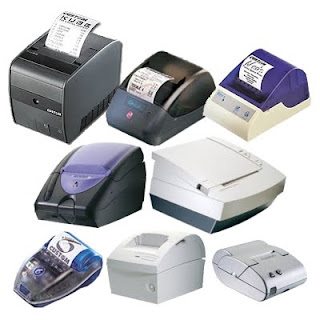
Internet, no doubt, is the best medium to get perfect solution to any query in this world. If not solution, it does provide you at least the source from where you can seek answers to your questions. I, in fact have found easy solution to the gravest of the problems on this interesting tool. Last week, I formatted my computer and when I was trying to install the printer, I realized that its driver CD is missing. I had no time to rush to shop as it was almost 11:30 in the night. Again, I accessed the Internet to find some solution to the same.
Here, I am discussing some easy steps that I followed to install printer on my computer without a CD. However, if you don’t have the printer driver disc, you can access the manufacturer’s website to download the drivers for your specific model of computer. Here are some of the easy steps that you can follow to install the printer in your computer.
Step 1. Identify the model of your printer
Step 2. Check the OS of your computer. If you don’t know how to do it, then go to “My Computer -> Properties ->General”
STEP 3. Search for the particular driver over the Internet and then download the file to particular location.
STEP 5. After following the steps of installation, restart your computer for allowing the hanged to take place.
STEP 6: Take a test print to find out whether it's installed correctly or not.
Recommendation:
If you are not a tech savvy and are installing the printer for the first time, do not take a risk and go for some technical support. However, if you don’t get any help in person, you can always go for iYogi Technical Service’s package for printer support and can install the printer of your choice at any point of time.
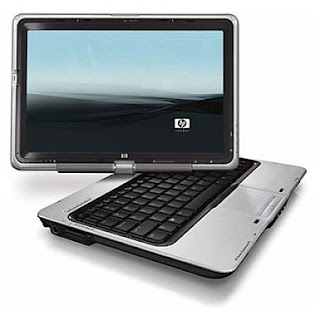
HP is a recognized manufacturer, which deals in all kinds of computers, printers, scanners and other peripheral devices along with their accessories. It keeps on introducing latest technologies in its products, so as to give you a new experience every time.
HP has introduced innovation in mobile computing; there are some ultra portable models like Compaq Mini CQ10 series, Compaq Presario CQ61Z series and HP Pavilion dm3z series which are quite popular.
However, sometime you may face issues with your HP computer, when you need to implement the best troubleshooting technique. Some of the most random issues of HP computers are slow performance, blue-screen error, audio problems and low memory. On rare occasions, you may also face problems with installation of software and hardware devices on your HP computer.
You can follow some easy troubleshooting steps to enhance your computer’s performance and reduce the chances of blue-screen error. Mainly, these occur due to lack of memory. There are free utilities like Disk Cleanup and Defragmenter, which can delete unwanted files and generate extra space on your computer’s memory at no cost.
However, memory of your HP computer can also be flooded with some virus infected files. In this situation you can troubleshoot your HP computer by scanning with compatible antivirus software, such as Avast Free Antivirus, AVG Anti-Virus 9.0 and Norton Internet Security 2010.
At times, your operating system might also get corrupted.
Follow the below troubleshooting steps to rectify/repair you corrupted Windows 7 OS:
Step 1. Insert a valid Windows 7 CD into the DVD drive and restart your computer.
Step 2. Change the boot order through BIOS, if required.
Step 3. Select the language you prefer and mention “Time” and “keyboard input”. Click “Next”.
Step 4. You will be getting three options, select “Repair Your Computer” followed by “Command Prompt” to run the effectual utility tool called "bootsect.exe". It will repair your Windows 7 operating system.
To get real-time resolution for any issues related to your HP product, you can always contact some tech support organization. These organizations have a team of experts and proper technology, which make them capable of resolving any issue related to HP product with an ease.
HP has introduced innovation in mobile computing; there are some ultra portable models like Compaq Mini CQ10 series, Compaq Presario CQ61Z series and HP Pavilion dm3z series which are quite popular.
However, sometime you may face issues with your HP computer, when you need to implement the best troubleshooting technique. Some of the most random issues of HP computers are slow performance, blue-screen error, audio problems and low memory. On rare occasions, you may also face problems with installation of software and hardware devices on your HP computer.
You can follow some easy troubleshooting steps to enhance your computer’s performance and reduce the chances of blue-screen error. Mainly, these occur due to lack of memory. There are free utilities like Disk Cleanup and Defragmenter, which can delete unwanted files and generate extra space on your computer’s memory at no cost.
However, memory of your HP computer can also be flooded with some virus infected files. In this situation you can troubleshoot your HP computer by scanning with compatible antivirus software, such as Avast Free Antivirus, AVG Anti-Virus 9.0 and Norton Internet Security 2010.
At times, your operating system might also get corrupted.
Follow the below troubleshooting steps to rectify/repair you corrupted Windows 7 OS:
Step 1. Insert a valid Windows 7 CD into the DVD drive and restart your computer.
Step 2. Change the boot order through BIOS, if required.
Step 3. Select the language you prefer and mention “Time” and “keyboard input”. Click “Next”.
Step 4. You will be getting three options, select “Repair Your Computer” followed by “Command Prompt” to run the effectual utility tool called "bootsect.exe". It will repair your Windows 7 operating system.
To get real-time resolution for any issues related to your HP product, you can always contact some tech support organization. These organizations have a team of experts and proper technology, which make them capable of resolving any issue related to HP product with an ease.

Software installation is required to support proper functioning of computer application programs. Without software, system will not be able to execute any application program. If you feel any difficulty in installing software on your PC, you can seek technical assistance from any technical service provider organizations.
The different types of software are as follows-
Shareware software: This type of software can be downloaded directly from the internet.
Adware and Spyware Software: It is a free software that is supported by advertisements preloaded in the program itself. It steals the data from user accounts without its knowledge.
Freeware Software: Freeware software is downloadable from the Internet free of cost. Freeware software is only available for personal and commercial use software requires a paid license. Freeware software is totally secure from adware’s and spywares.
Driver Software: Drivers are the software that supports the functioning of application programs. Some of the drivers are audio drivers to support the sound effect of system speakers, video drivers to support image and video display on screen.
There are different types of freeware software available, such as AVG antivirus software, McAfee antivirus software, Compaq sound drivers software, audio mastering software, printer installation software, virus update software, MS office etc. Installation of software can be done through CD, USB drives. To run any application program on computer, you require software compatible with application program. To make use of the printer or to listen music, you need to install software drivers for printer and audio drivers for speakers to enable sound effects. To secure your PC from hazardous affects of virus and Trojans you need to install antivirus security software at your system
Installation of software is prime concern to have advantage of various computer applications. If you hit upon any difficulty in installation of software on your PC, then you can seek quality technical assistance from any certified tech support organization.
The different types of software are as follows-
Shareware software: This type of software can be downloaded directly from the internet.
Adware and Spyware Software: It is a free software that is supported by advertisements preloaded in the program itself. It steals the data from user accounts without its knowledge.
Freeware Software: Freeware software is downloadable from the Internet free of cost. Freeware software is only available for personal and commercial use software requires a paid license. Freeware software is totally secure from adware’s and spywares.
Driver Software: Drivers are the software that supports the functioning of application programs. Some of the drivers are audio drivers to support the sound effect of system speakers, video drivers to support image and video display on screen.
There are different types of freeware software available, such as AVG antivirus software, McAfee antivirus software, Compaq sound drivers software, audio mastering software, printer installation software, virus update software, MS office etc. Installation of software can be done through CD, USB drives. To run any application program on computer, you require software compatible with application program. To make use of the printer or to listen music, you need to install software drivers for printer and audio drivers for speakers to enable sound effects. To secure your PC from hazardous affects of virus and Trojans you need to install antivirus security software at your system
Installation of software is prime concern to have advantage of various computer applications. If you hit upon any difficulty in installation of software on your PC, then you can seek quality technical assistance from any certified tech support organization.
Subscribe to:
Posts (Atom)