Follow the steps to fix BAD Sector
Step 1
Double-click on My Computer to open the My Computer window.
Step 2
Select the disk that you want to diagnose and repair.
Step 3
Choose Properties from the File menu. You should see the Properties window for the drive that you selected.
Step 4
Choose the Tools tab.
Step 5
Click the Check Now button under Error Checking Status.
Step 6
Depending on your version of Windows, choose either "Thorough" or "Scan for and Attempt Recovery of Bad Sectors."
Step 7
Click on Start.


There is no any major difference. But still this will help you to understand about Malware, Spyware, Adware And Trojan.
*Virus is a program to cause damage to computer.
*Trojan is a program which is used to gain access to a computer by installing a program on infected PC to open some backdoor. [Trojans are also known as Backdoors].
*Worm is a program which infects the computers which are connected by some network. Worms slow down the network.
* Spywares are the program which are used to monitor/Log the activity performed on a computer. These are used to spy on some one either for legal or illegal perpose. Example: Keylogger applications.
* Adwares are the programs which delivers ads to your computer (generally in POP-UP's form). They consume your network.
*Malwares are the program with malicious intention. It can be damaging your computer, spying on you or any other malicious task.
For More Details: Virus Removal Support
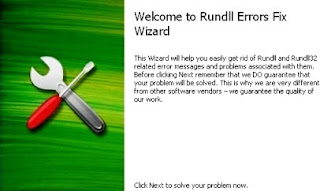 RunDLL errors occur when some applications that are loaded from the registry are corrupted. These files slow computer performance and display errors during normal Windows processes.
Follow the given instruction which fixes the errors and improves the speed of the computer:
- Click the "Windows Start" button and select "Run." Enter "services.msc" in the text box. This opens the services screen that shows all the applications running on the computer.
- Right-click the service that is causing the errors and select "Stop." This allows you to delete the service files and remove them from the registry safely.
- Click the Windows Start button and select "Run." Type "regedit" into the text box and click the "Enter" key. This opens the Windows registry where the RunDLL file is removed from start-up.
- Navigate to "HKEY_LOCAL_MACHINE> SOFTWARE\ Microsoft\ Windows\ CurrentVersion\ RUN" in the registry. This is where the Windows computer loads applications into memory when the computer boots. Right-click the DLL file that is causing the errors and select "Delete."
- Reboot the computer after the registry edits for the changes to take effect. Now that the RunDLL file has been removed from start-up, the errors will cease.
For More Details: Fix Rundll Errors
 Microsoft System Image Manager is the tool you use to build and assemble Windows 7 answer files. You can assemble features, packages, and answer file settings. Windows Setup uses Unattend.xml to assemble and customize the default Windows 7 installation for all conformation passes. For instance, you can assemble Internet Explorer, assemble Windows Firewall, and define the hard drive configuration. You can use Windows System Image Manager to assemble Windows 7 in several ways, including the following:
Advantages of Windows System Image Manager :-
Install third-party applications while installation. Customize Windows 7 by building answer files. Employ language packs, service packs, and updates to an image while windows 7 installation. Add device drivers to an image while installation. With versions of Windows previous than Windows Vista, you had to modify answer file settings manually using a text editor, even after initially building an answer file by using Windows Setup Manager. The Windows 7 answer file depends on XML and is far too composite to modify manually. So you must use Windows System Image Manager to modify Windows 7 answer files.
In another development, Windows Setup (Setup.exe) is the program that installs Windows 7. It uses image-based setup (IBS) to give a single, interconnected process with which all customers can install Windows. Image-based setup does clean installations and upgrades of Windows. Windows Setup and image-based setup permits you to prepare Windows 7 in your firm easily and cost effectively. Windows Setup comprises of many new features that help installations that are faster and more logical than Windows XP, including the following:
Enhanced image management using Windows System Image Manager :-
Windows 7 images are saved in a single .wim file. A .wim file can save many instances of the operating system in a single, highly compressed file. The install file, Install.wim, is positioned in the Sources folder on the new Windows 7 media. Streamlined installation - Windows Setup is optimized to enable the deployment assumptions used by most firms. Installation takes less time and gives a more uniform configuration and deployment process, resulting in less deployment costs.
Faster installations and upgrades using Windows System Image Manager :-
Because Windows Setup is now image based, installing and promoting Windows 7 is faster and easier. You can do clean installations of Windows 7 by deploying the Windows image to destination computers, you do promotions by installing a new image on an existing installation of Windows. Windows Setup saves the former Windows settings while the installation. Windows Setup amends the installation experience over Windows Vista. For example, Windows Setup moves the license key to the Windows Welcome page, providing users to type a product key after completing installation. Windows Setup also automatically builds a small, hidden partition for BitLocker Drive Encryption. This makes it easier to enable BitLocker Drive Encryption later, because users don’t have to prepare the drive. Additionally, the final stage of Windows Setup, Windows Welcome, is faster and gives more feedback on the progress of the setup process.
In another development, the new Windows 7 distribution media includes some of these tools, including Sysprep, DISM, and other command-line tool, but they aren’t on the media in a separate file such as Deploy.cab. The Windows AIK 2.0 includes the bigger tools, such as Windows SIM, Windows PE, and ImageX. These are the basic tools needed to build, customize, and prepare Windows 7 images.
One of the cool little features that arose from the ashes of the disaster known as Windows Vista was the Reliability Monitor. A little-known tool which is almost hidden within the action center, the Reliability tool is great for tracking your computers reliability.
“Reliability Monitor is an advanced tool that measures hardware and software problems and other changes to your computer. It provides a stability index that ranges from 1 (the least stable) to 10 (the most stable). You can use the index to help evaluate the reliability of your computer. Any change you make to your computer or problem that occurs on your computer affects the stability index.”
Per Microsoft, the Reliability Monitor is intended for advanced computer users, such as software developers and network administrators, but it is easy to use, so even moderate users will have no problem using the tool to track their system over time.
There are two ways to find your PC’s Reliability history:
You can use Windows Search and begin typing the word ‘Reliability’ until the option shows.
Or
Right-click on the white flag in your taskbar to open Action Center.
Click Maintenance. Then, under Check for solutions to problem reports, click View reliability history.
In Reliability Monitor, you can:
* Click any event on the graph to view its details.
* Click Days, or Weeks, to view the stability index over a specific period of time.
* Click items in the Action column to view more information about it.
* Click View all problem reports to view only the problems that have occurred on your computer. This view does not include the other computer events that show up in Reliability Monitor, such as events about software installation.
The Reliability Monitor is a very basic program with a very basic use. It’s one of the many useful tools provided natively in Windows 7 which can help you keep your PC on the right track.
Source http://www.windows7news.com/
“Reliability Monitor is an advanced tool that measures hardware and software problems and other changes to your computer. It provides a stability index that ranges from 1 (the least stable) to 10 (the most stable). You can use the index to help evaluate the reliability of your computer. Any change you make to your computer or problem that occurs on your computer affects the stability index.”
Per Microsoft, the Reliability Monitor is intended for advanced computer users, such as software developers and network administrators, but it is easy to use, so even moderate users will have no problem using the tool to track their system over time.
There are two ways to find your PC’s Reliability history:
You can use Windows Search and begin typing the word ‘Reliability’ until the option shows.
Or
Right-click on the white flag in your taskbar to open Action Center.
Click Maintenance. Then, under Check for solutions to problem reports, click View reliability history.
In Reliability Monitor, you can:
* Click any event on the graph to view its details.
* Click Days, or Weeks, to view the stability index over a specific period of time.
* Click items in the Action column to view more information about it.
* Click View all problem reports to view only the problems that have occurred on your computer. This view does not include the other computer events that show up in Reliability Monitor, such as events about software installation.
The Reliability Monitor is a very basic program with a very basic use. It’s one of the many useful tools provided natively in Windows 7 which can help you keep your PC on the right track.
Source http://www.windows7news.com/
Spyware is an innovative anti-spyware system that protects computer from viruses and pop-up windows. It blocks unwanted files so that these do not automatically get installed in your PC and hack your computer to temper with your personal files.
ARE YOU fed up with the continuous pop-up windows that block your enjoyment while you surf on the Internet? Do you experience the problem of hacking more often? Have you stopped visiting your favorite web sites and have stopped playing online games due to the unwanted disturbance of pop-up window?
The answer to all these questions is block spyware, which acts as a firewall and provides security by protecting your personal computer from viruses, pop-up windows and thus blocks all those annoying pop-up windows, which interrupt your enjoyment.
There are various ways to protect your personal computer from the regular threats and thus preserve your privacy. Anti-spyware is one of the most thorough and fast scanners that detect spyware and other exploits, which corrupt your computer programming. It scours the web for new threats and provides daily definition updates. It easily removes threats, such as adware, spyware, Win Fixer, Spy Axe, Spy Falcon and many more. So get a block spyware and free yourself with all the worries of spyware threats and enjoy your privacy.
Are your private documents on personal computer at risk?
To answer it simply, yes. Every time you access your Internet, unprotected and corrupted viruses or cookies and tracking devices are installed on your computer.
Spyware devices can be used to track your Internet activities, thus, hacking your keystrokes to obtain passwords or to gather important information from your personal files. So to avoid spyware, upload anti-spyware software, which maintains your privacy and helps to identify theft, thus, protecting your information from being robbed. One of the chief features of block spyware is that it blocks the threat that can corrupt the functioning of a PC.
Your privacy is our chief concern. Our business is to evacuate the web from all the corrupted companies that install spy software on your PC. Dangerous and annoying spyware can destroy your programming in many different ways, when you use Internet. Spyware removal utility provides a personal privacy tool that detects and eliminates destructive pests like spyware, adware and hacker tools. It confiscates virus and corrupt cookies, thus providing protection against non-viral malicious software that hack your private information, thus infecting your existing security and personal privacy. Block spyware provides you with all the necessities through which you can protect your personal information and can maintain your enjoyment and privacy in best possible way.
ARE YOU fed up with the continuous pop-up windows that block your enjoyment while you surf on the Internet? Do you experience the problem of hacking more often? Have you stopped visiting your favorite web sites and have stopped playing online games due to the unwanted disturbance of pop-up window?
The answer to all these questions is block spyware, which acts as a firewall and provides security by protecting your personal computer from viruses, pop-up windows and thus blocks all those annoying pop-up windows, which interrupt your enjoyment.
There are various ways to protect your personal computer from the regular threats and thus preserve your privacy. Anti-spyware is one of the most thorough and fast scanners that detect spyware and other exploits, which corrupt your computer programming. It scours the web for new threats and provides daily definition updates. It easily removes threats, such as adware, spyware, Win Fixer, Spy Axe, Spy Falcon and many more. So get a block spyware and free yourself with all the worries of spyware threats and enjoy your privacy.
Are your private documents on personal computer at risk?
To answer it simply, yes. Every time you access your Internet, unprotected and corrupted viruses or cookies and tracking devices are installed on your computer.
Spyware devices can be used to track your Internet activities, thus, hacking your keystrokes to obtain passwords or to gather important information from your personal files. So to avoid spyware, upload anti-spyware software, which maintains your privacy and helps to identify theft, thus, protecting your information from being robbed. One of the chief features of block spyware is that it blocks the threat that can corrupt the functioning of a PC.
Your privacy is our chief concern. Our business is to evacuate the web from all the corrupted companies that install spy software on your PC. Dangerous and annoying spyware can destroy your programming in many different ways, when you use Internet. Spyware removal utility provides a personal privacy tool that detects and eliminates destructive pests like spyware, adware and hacker tools. It confiscates virus and corrupt cookies, thus providing protection against non-viral malicious software that hack your private information, thus infecting your existing security and personal privacy. Block spyware provides you with all the necessities through which you can protect your personal information and can maintain your enjoyment and privacy in best possible way.
Subscribe to:
Posts (Atom)