1. Check if the USB device is properly connected. Many times, if the contact between the connectors is even slightly lose, the device may not be detected. Check if the internal connectors to the motherboard are fixed properly.
2. Many USB devices work on the computer power supply, but a few have a separate power supply. In such cases, ensure that the USB power supply is switched on after making suitable connections.
3.Device drivers are usually provided separately on a CD, though some USB devices work with the default drivers available with Windows. The device drivers must be installed on your computer . Check for the latest versions of device drivers on the manufacturers website. Also ensure that the latest device drivers for your motherboard are installed.
4. Uninstall the USB device through device manager. Switch off the computer, unplug the USB device Check if the latest device drivers are installed and and restart the computer. Windows will automatically install the device drivers. Connect the USB devices again.
5. Many times USB devices, especially pen drives are faulty. In such cases, get a new device as a replacement from the manufacturer, if the product is under warranty.
6. Try connecting the USB device in Windows Safe Mode. If the device works properly in safe mode, but not normally, there may be a problem with some software installed on your computer.
7. Some times, you may have USB 2.0 hardware ports which are detected as USB 1.0 because of the Operating System Installed. Windows XP supports USB 2.0 only from Service Pack 1 onwards, so for older versions of Windows you may face this problem.
8. If the screws or internal adhesives detach and the USB nose plays in and out (loose). Then attach the USB to a USB cable permanently. You can also open up the flash disk and add more adhesive or tighten the screw. Avoid using much force when plugging in USB to the computer Ports.
9. Run antivirus scan every time you connect a unfamiliar flash disk to your computer. It may have a virus or malware. you can get free anti-virus now.
10.Use Data recovery software to get lost data from your USB drive.
source:-http://www.trcb.com/computers-and-technology/computer-repair/how-to-fix-usb-device-or-flash-disk-problems-12324.htm
Follow the steps below to TUNE UP Your WINDOWS XP PC :-
1. Run “Windows Update” regularly, or use the automatic “Critical Updates Notification”.
2. Install anti-spyware software (Ad-aware, Spybot S&D & Spyware Doctor are all good ones) and keep it updated. Spyware Blaster runs in the background and stops spyware installing itself.
3. Run the anti-spyware program regularly to keep your PC clean.
4. Install & regularly update your anti-virus software.
5. Run the anti-virus program on a regular basis.
6. One option is to enable “Microsoft Firewall”. However MS Firewall does not control outgoing connections (ie. a virus/worm trying to ‘phone home’). Download and install ZoneAlarm – a free version is available.
7. Make sure there’s nothing in the Startup list. (Start Menu> All Programs> startup) Unless there are programs in the list that you need to run when the computer starts up, it should be empty.
8. Uninstall unnecessary or rarely-used programs in “Add/Remove Programs”.
9. Clean the Desktop icons you don’t use. Put them in a folder (preferably not on the desktop) if you are nervous about deleting them.
10. Clear the Recent Documents & Programs list, on Taskbar & Start Menu properties.
11. Internet Explorer users:
* In “Temporary Internet Files”, delete cookies, and delete files.
* In the “Advanced” tab, uncheck all “Install On Demand” items and disable Javascript and VB Script listed under “Microsoft VM”.
12. In your “Windows” folder, manually delete files in the “Temp” folder.
13. Delete unused system tray programs.
14. Remove startup programs with the MSConfig application (Start>Run> “msconfig”, OK).
15. Run Windows Disk Cleanup. Do this at least twice a month. Make sure ‘Recycle bin’ is checked to periodically empty it.
16. Run MS Disk Defragmenter. Do this at least once a month (Start Menu> All Programs> Accessories> System Tools).
17. Update your drivers for CPU, memory, video card and sound card, etc. Download the driver updates from the manufacturer’s web site.
source:-http://www.tech-support-news.com/computers/how-to-tune-up-your-windows-xp-pc/
If your computer shuts down or crashes you might find yourself in a annoying situation where the computer continuously reboots in a loop while attempting to start Windows.
This may be caused by the registry becoming corrupt as a result of an application writing to the registry at the time of a system crash. The next time the computer boots up and tries to read the registry the system fails and has to restart.
To fix the problem* When the computer restarts, shortly after the initial beep press F8
* Select "Boot from last known working configuration"
If the above does not fix the problem you might want to work your way through my How to service your PC article to replace and recover corrupted Windows files that might be causing the problem.
Steps to prevent continuously restarting during bootup* Click Start
* Settings (Skip on Windows XP)
* Control Panel
* System (May need to click "Switch to classic")
* Advanced Tab
* Press Settings button
* Uncheck "Automatically restart"
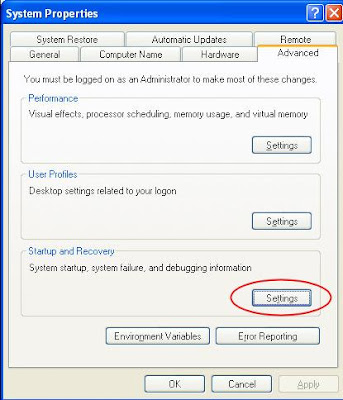
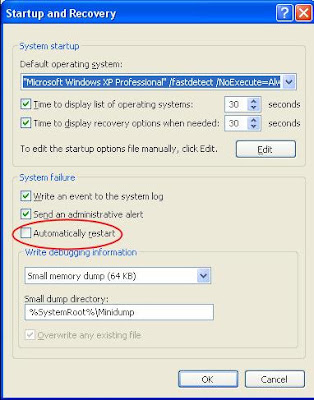
This will prevent Windows from restarting even when it encounters an error during the bootup process.
source:-http://www.alexnolan.net/articles/restarting.htm
Incremental data backup technique allows you to backups all the files that have been modified since the most recent normal or incremental backup performed. The presence of the archive bit indicates that the file has been changed and only files with this attribute are backed up last time. When a file is backed up, the archive attribute is cleared. If the file is later modified, this attribute is set, which means that the file needs to be backed up.
An incremental data backup is a process in which several backups are kept (not just the last one). These backups will be incremental, if each original piece of backed up information is stored only once, and then successive backups contain only the data that changed since a last backup.
Let’s assume if you perform an incremental backup on Tuesday, you only back up the data that modified since the incremental backup on Monday. As a result, it’s faster backup technique. The plus points of incremental backups are the short backup duration and the less data to be backed up.
Incremental backup technique offers much greater flexibility and perform backup at rapid speed. However, the process takes longer time to restore because the backup has to be reconstituted from the last full backup and all the incremental backups.
Conclusion
Incremental data backup is a faster method of backing up data than frequently running full backups. During an incremental backup only the files changed since the most recent backup are included. That is why it gets its name: each backup is an increment since the most recent backup.
Advantages
• Backup time is faster than full backups.
• Incremental data backups require less disk space, tape, or network drive space.
• You can keep multiple versions of the same files on different backup sets.
Disadvantages
• During a restoration process, you must have all of the incremental backups available.
• It may take longer to restore a specific file since you must search more than one backup set to find the latest version of a file.
Data backup & restore is a critical process and must be performed carefully. Although, Windows operating system offer user friendly tools to perform and restore data backup but one may find difficulties due to the technology involved in this process. If you want to perform or restore data on your PC and looking for professional assistance, call a tech support organization and avail data backup services at economical rates. There are various organizations that offer remote data backup services that mean their certified technicians can remotely connect your PC and perform data backup and restore operation as per your requirement.
Upsell for iYogi
• Call iYogi! Our Microsoft certified technicians help you in performing and restoring data backup.
• Contact iYogi to sort out issues related to data backup.

If you have MS Word installed on your computer, there are chances that you might face some complications while using it. For instance, we know that it is normal for users to replace existing file servers with fresh ones. When you do this, the older one is usually not removed and both the servers are used simultaneously at the same time.
However, when you start operating and removing older files, Microsoft Word might hang. There are viable solutions to repair this Microsoft Word flaw.
The Microsoft Word might hang when documents from shared locations are opened from local drives as well.
An attached template is present in every Word document and if the template cannot be found and is missing, Windows XP usually tries to look for it and does the search all over again. If this template had been located in the old server and if the old server has been taken offline, it is impossible for Windows XP to find the template.
The Word will appear to look like it's hanged. This is so because the time taken to locate this missing file will be long and it will take the same time for the document to open.
It might take even longer for the document to open if your computer is connected to a network. The time is considerably shorter when disconnected.
In another case, we all know that Microsoft Word provides a template for Field Codes. These codes can be quite a nuisance if they are not taken care of properly.
It is normal that one would expect to see cells and data from the worksheet in Microsoft Excel in the document. However there are times when you will not find the Excel worksheet.
You will need the help of Microsoft Word to tackle this issue. The problem could occur because the field codes have been placed wrongly in a document instead of the field code results. It is also possible that all placeholders would be disclosed and revealed for content, which should have actually been for the content itself. This could have been done accidently when ALT+F9 could have been pressed in a document or when you had pressed SHIFT+F9 by mistake.
When these commands and the shortcuts are deliberated by mistake, a caption "text in brackets" will be displayed in the documents and not the content that you expect to see. Microsoft Word Help support starts here, and you will have to go to the official Microsoft Website. However, you will not find the keywords for "text" and "brackets" in the search.
The catch here is that the text was never in brackets as it seemed to have appeared to the user. They are actually texts itself with curly braces. And curly braces as a keyword will show in the Microsoft Word Help. This issue can be resolved by pressing ALT+F9. This will be the patch between the field code results and displays. The key will give an option in Word, which will make field codes to be shown and not the results if you open a document. The selected or cleared option will rely largely on the version of Windows used by the user.
The techniques to repair this Microsoft Word error are given separately for Microsoft Word 2003 and 2007 versions. But the difference will not be in the keys since for both the versions ALT+F9 applies. Only the templates to select from will make the difference.
However, if you are facing some other issues related to any version or edition of MS Word, you can always go for reliable tech support. These tech support organizations adopt remote desktop technology to fix any problem that you are facing while using MS Word.
If you live in Leicester and are looking for high quality and affordable home computer support, we at iYogi provide premium quality technical support to answer your queries.
Having trouble booting your computer or error messages pop-up itself after a certain interval, your computer crashes or fails to respond to clicks. There is no need to get worried, call iYogi and we will fix your problem right.
If you live in Leicester and are looking for high quality and affordable home computer support, we at iYogi provide premium quality technical support to answer your queries. Our Microsoft certified technicians offer extensive knowledge base and advance tools for diagnosis, repair and maintenance.
Our services include:
• Installation/Reinstallation
• Upgrading System
• Troubleshooting error while launching or working with the application
• Performance optimization
• Configuration of the mail
• Support for playing different multimedia file formats
• Removal of virus and spyware
• Data backup
• Driver installation
iYogi provides next-generation, personalized remote computer support to meet the demands of home and small business consumers. Our comprehensive support spans over 100 desktop software applications, server, hardware devices, printers, peripherals, routers and modems.
Our highly qualified tech experts are available 24/7/365 to assist you and ensure peak performance and customer satisfaction.


